
Factory Reset for RangeCam 2 Model CamerasUpdated 24 days ago
Several factors may prevent your camera from transmitting normally. A factory reset can eliminate many of these factors and should restore your camera to normal operation.
RangeCam 2
Please note the below image. If your camera appearance does not match, please return to the Help Center and select the correct article for your camera.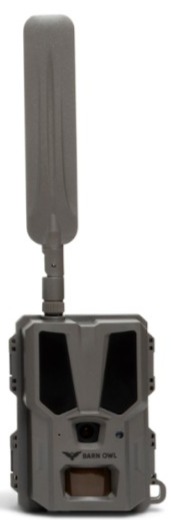
Factory Reset: Slide the camera's power switch to the SETUP position. Locate the reset button hole located on the bottom left corner of the camera. Insert a safety pin, pencil tip, or other thin tool into the reset switch hole and hold down for five seconds. The camera's status lights will flash while resetting. Once the lights are solid green you may proceed with formatting the SD memory card. Please note the signal light may be solid yellow and this is normal.
Format SD Card: While the camera is in SETUP mode, locate the SD format button directly beneath the camera's status lights on the right side. Press and hold for five seconds. The SD light (second from the left side) will flash yellow while formatting is in progress, and will turn green once completed. There is no need to reapply camera settings from the website and you may now proceed with a test photo.
Test Photo: While the camera is in SETUP mode, press and release the Test button located on the right side of the camera's inner panel. The first light, Mode, will flash green while the test photo is being taken and transmit to your online account. Please check your Barn Owl HQ account to view the test photo.
Status Lights: Your camera is ready to operate once the status lights are steady. The Signal light may be yellow if signal is not strong in your current location.