Suspend or Activate CamerasUpdated 8 months ago
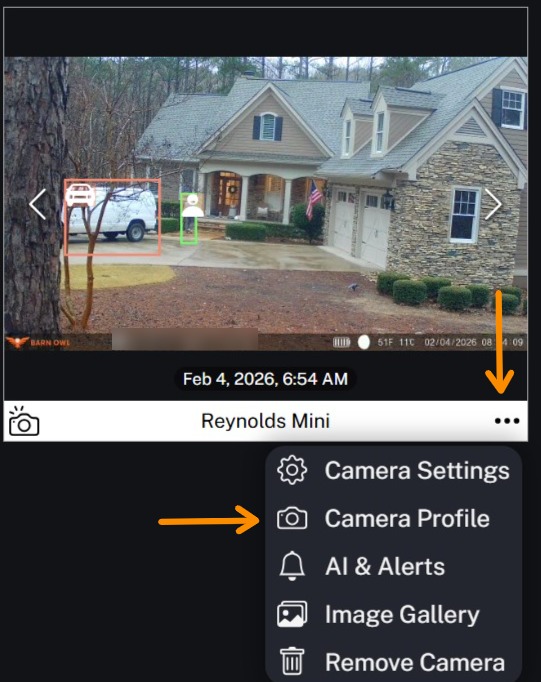
To Suspend or Activate your camera, click the 3 dots on the bottom right of your camera and then select Camera Profile.
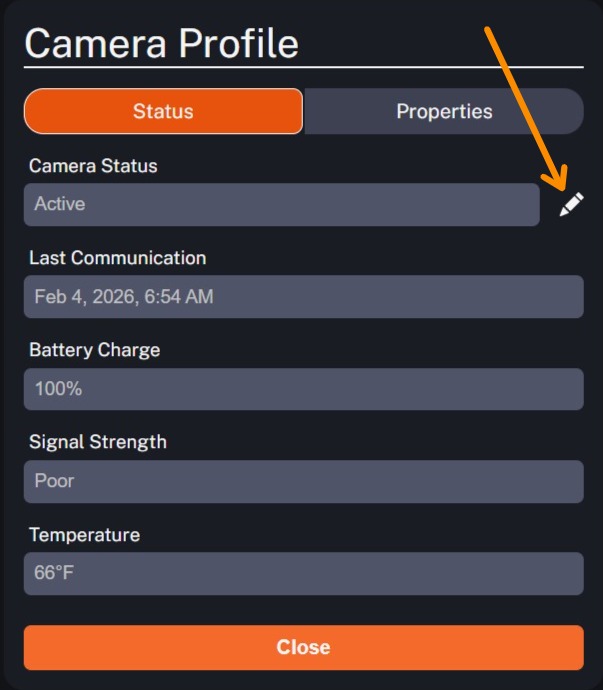
Then click the pencil icon next to Camera Status.
This next screen allows you to Suspend or Snooze the camera. Suspend is better for cameras which need to be disabled for days, weeks, or months at a time whereas Snooze is better for temporary pauses (such as when you know maintenance will be on your property and you don't need photos of their activity). Select the new Camera Status and then click Update Status.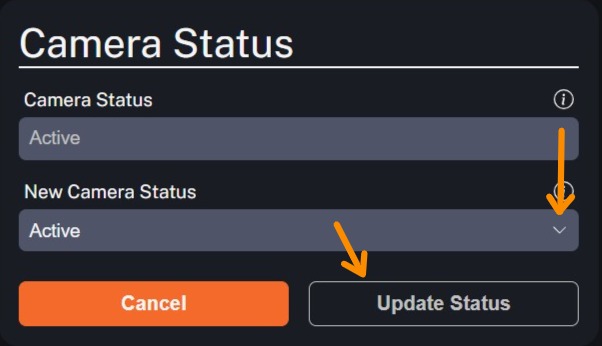
If you are on a Monthly subscription plan, suspending a camera will pause billing on that device until it is reactivated. Annual plan costs are not affected by camera suspension.
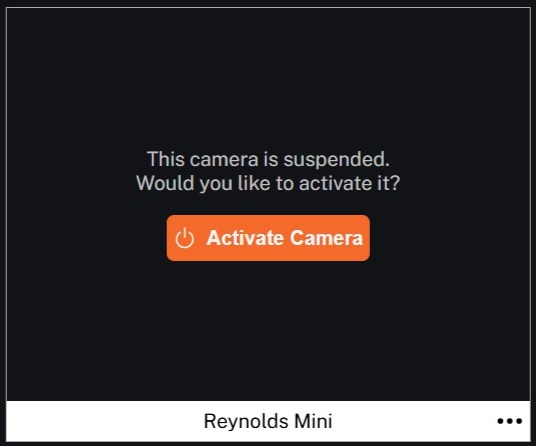
To Activate your camera, simply click the Activate Camera button. Please note you may need to apply a Factory Reset on a camera that has been offline for a long period of time.