Access Invoicing and Usage DataUpdated 9 months ago
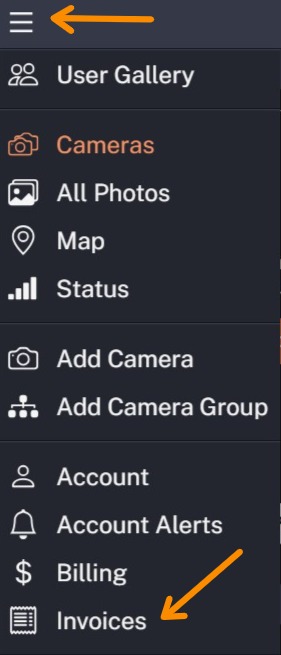
To review your Invoices, click the Main Menu button in the upper left corner and then select Invoices.
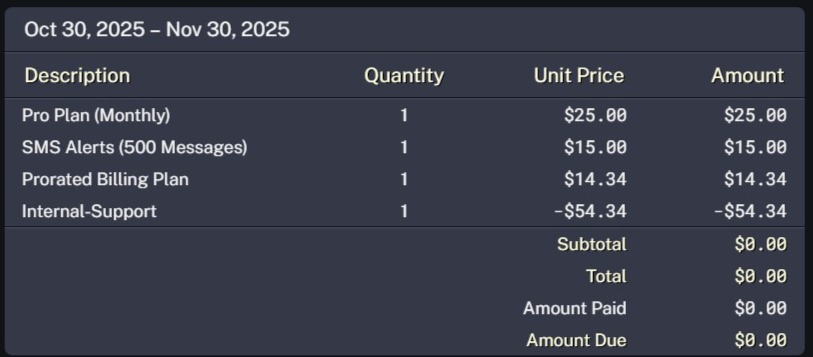
In this example we will look at a Barn Owl test account so it may look slightly different from your Invoices screen. The topmost invoice will be your "in progress" invoice which has not yet finalized for the month. This invoice will display "partial" to indicate the current billing period isn't completed. The second invoice is your finalized total for the previous month (or year if you are using an annual billing plan). Let's look at an example processed invoice.
What does Prorated mean?
This indicates a billing change (data upgrade, data downgrade, camera suspension, or addition of an optional service like AI) occurred during the billing period. You are not charged the full monthly amount for this service.
Why is my monthly amount less or more than I expected?
Customer Support does not hold customers responsible for data used by a malfunctioning camera. When these issues are reported to Barn Owl, we may make credit or debit adjustments to your monthly bill to account for these concerns. A credit appears as a - and a debit is a +. In the above example, this account was reviewed by Customer Support and we determined the monthly charges should be waived due to camera performance issues. The credit is -$54.34 meaning a total of $54.34 was deducted from that month's Amount Due.
How do I know how much data my cameras use?
Barn Owl HQ offers a convenient method to review your camera's data usage. This can help stay within your Monthly or Annual data plan. Start by clicking on the upper right corner ellipsis menu (...) and then click Group Status.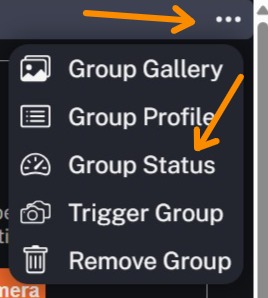
This next screen shows a breakdown of how much total data has been used and important camera status indicators (such as signal strength and power. This is a quick method to determine the overall health of your cameras.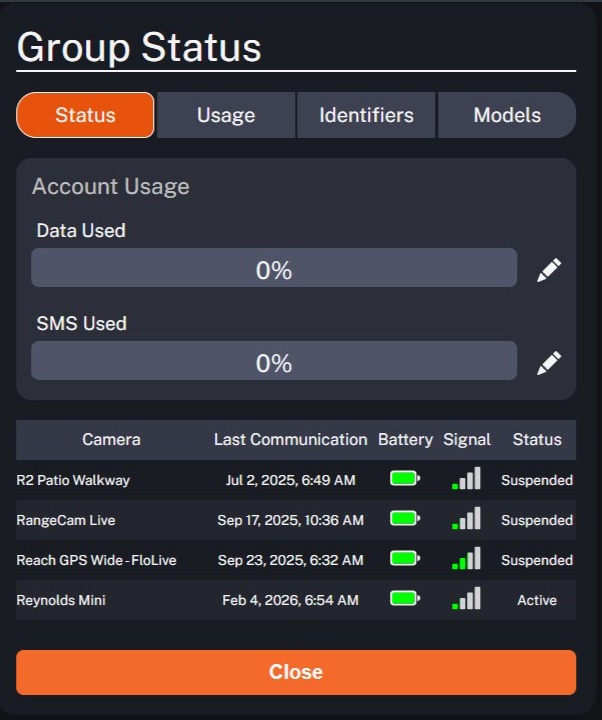
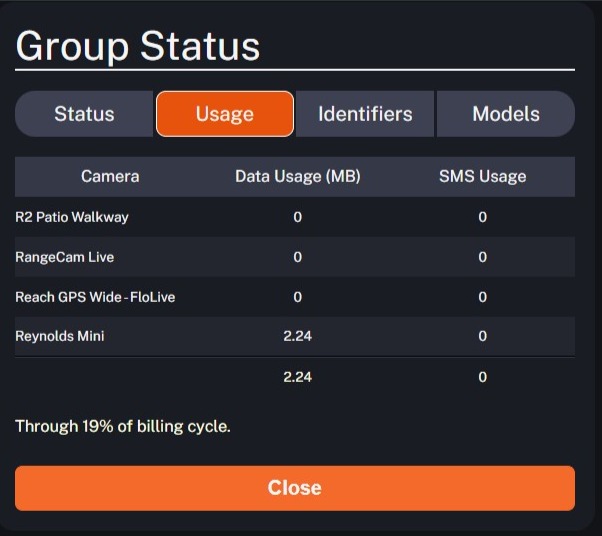
For a more detailed breakdown of data use, click the "Usage" tab at the top of the screen. In the below example image, we can see camera "Reynolds Mini" has used 2.24 MB of data this month and we're 19% through the current monthly billing cycle. You may use this information to determine if your will run out of data before the month ends and, if so, make settings or billing adjustments.