
Recommended Camera SettingsUpdated 8 months ago
Registering your camera but not sure what settings would be the best for you? Feeling like you’re not getting enough out of your camera? Unsure of how to make adjustments to make your bill more manageable? Let’s check out some of Barn Owl’s most common camera uses and how other customers are applying their settings!
What are you using your camera for? Below are examples of the most common uses and our recommended settings.
Agriculture
David has 200 head of cattle that he keeps on his property about 50 miles from him. He used to have to drive every day to check his stock tanks, but since he decided to invest in Barn Owl, he can check his phone for a day and nighttime check on the condition of his cattle’s water. Below are the settings that he uses.
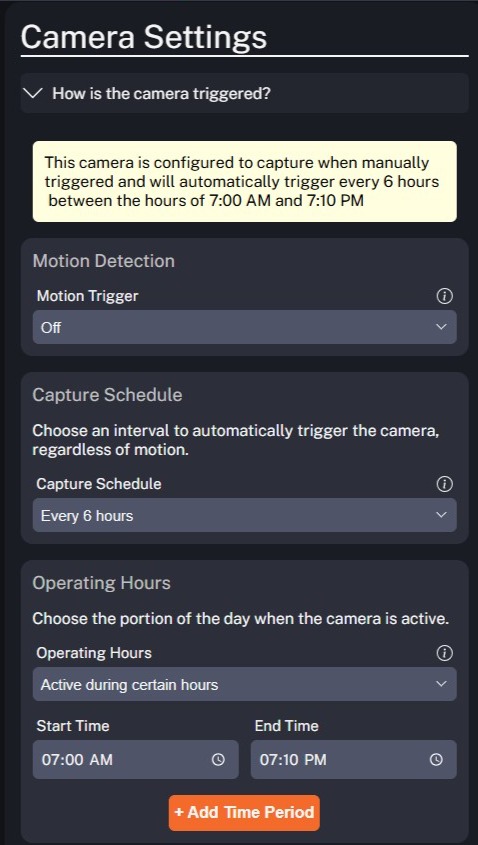
David has motion turned off. This saves data since the camera won't take a photo every time his cattle move.
He enabled the Auto Capture Schedule to trigger every six hours.
David also set the Operating Hours from 7AM to 7:10PM, enduring he receives three photos per day. The additional ten minutes ensures his camera will transmit the final photo before shutting down for the day
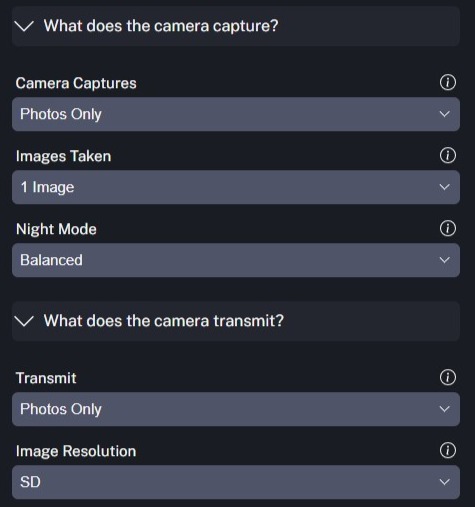
He also makes sure the camera is capturing Photos Only, and the Photo Size is set to SD (or Standard Definition).
The top of the camera settings screen confirms the camera's programmed behavior in easily understandable terms, offering reassurance that David set up his device to perform exactly as he needs.
We recommend the Basic Billing Plan for this type of use.
Property and Wildlife Monitoring
Robert was concerned about trespassers on his property so he invested in Barn Owl cameras to ensure trespassers were able to be addressed. It’s also given him the opportunity to monitor his local wildlife on his property for hunting season, which is right around the corner! For Robert’s peace of mind he has his cameras available for 24/7 monitoring. Below are the settings he uses.
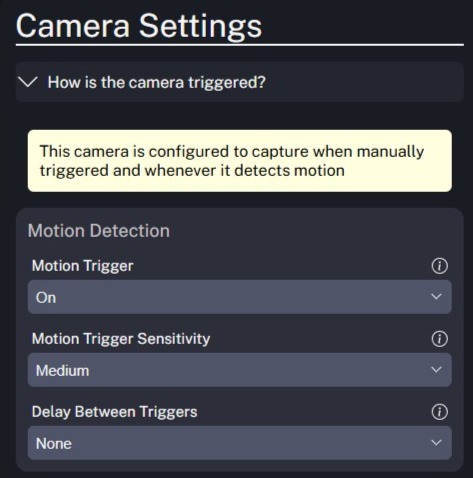
Robert has Motion turned on, this allows his camera to be active and alert 24/7 for any activity in front of it.
He has the camera’s sensitivity set to Medium, which will help control the activity that’s picked up. With a medium sensitivity he’s less likely to pick up small motions like a mouse, or moving weeds, but will still actively capture a person or larger animal.
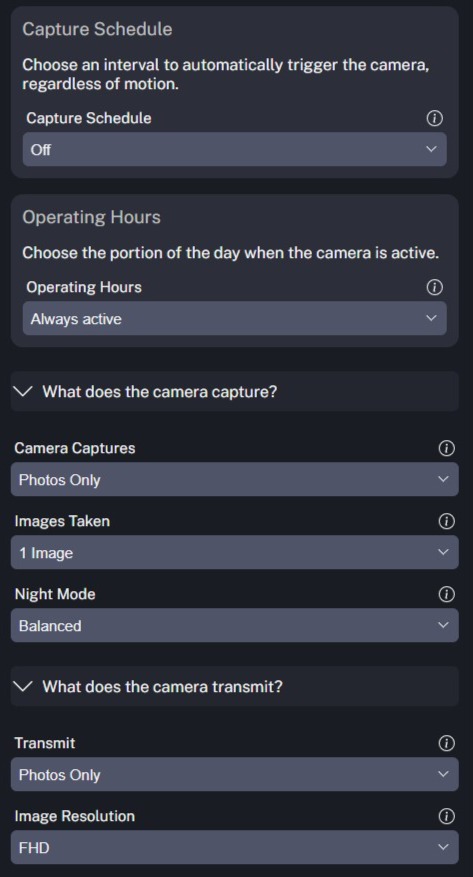
The camera is set to capture Photos Only, and the Photo Size is set to FHD (or Full High Definition). FHD is a larger resolution that assures Robert will be able to not only see wildlife, but he’ll have clearer detail of vehicles, license plates, and faces should a trespasser be on his property. It doesn’t hurt if he can count the number of points on that trophy buck, either.
Similar to David's example, the top of the Camera Settings screen will summarize the device's current settings to help verify Robert applied the best settings for his needs.
We recommend the Standard Billing Plan for this type of use.
After-Hours Security
Julia owns a small business, but recently there have been some issues with trespassers breaking in and stealing things. She doesn’t want a security system during the day because there’s a lot of activity in front of the camera during working hours. Instead, Julia has her camera set to only be active during after working hours to ensure that she can monitor his assets and prevent further theft. Below are the settings she uses.
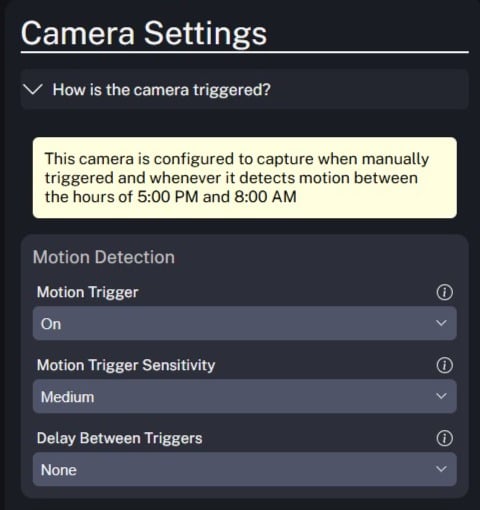
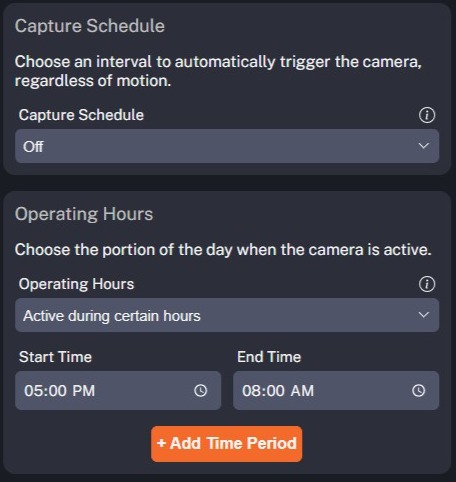
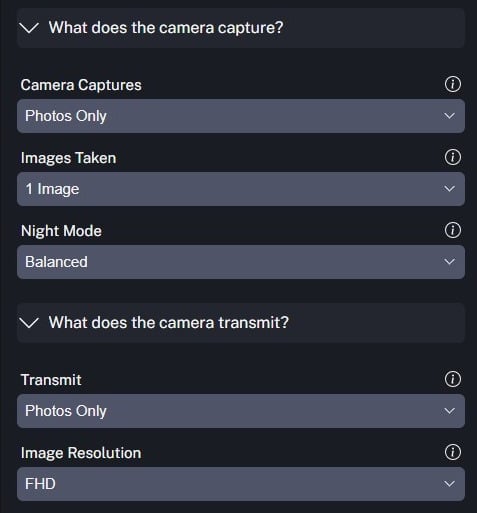
Julia has the Motion turned on, to ensure she’s able to catch activity.
That motion will only be active within the Operating Hours, which she has set to start at 5PM and end at 8AM to ensure that her camera is not taking photos during working hours.
She also makes sure the camera is capturing Photos Only, and the Photo Size is set to FHD resolution which will allow for a clear captures with higher detail on vehicles, license plates, and faces should she need to use a photo in a police report.
We recommend the Standard Billing Plan for this type of use.
Job site and Construction Monitoring
Arthur owns a construction company and he wants to be able to not only monitor job sites, but he also wants to be able to show progress updates to his clients and utilize Time Lapse to strengthen his portfolio for future jobs. To do that he needs a mobile camera and monitoring system, which is where Barn Owl comes into play! Barn Owl offers the monitoring he needs as well as a Time Lapse video creator. Below are the settings Arthur uses to take advantage of these features.
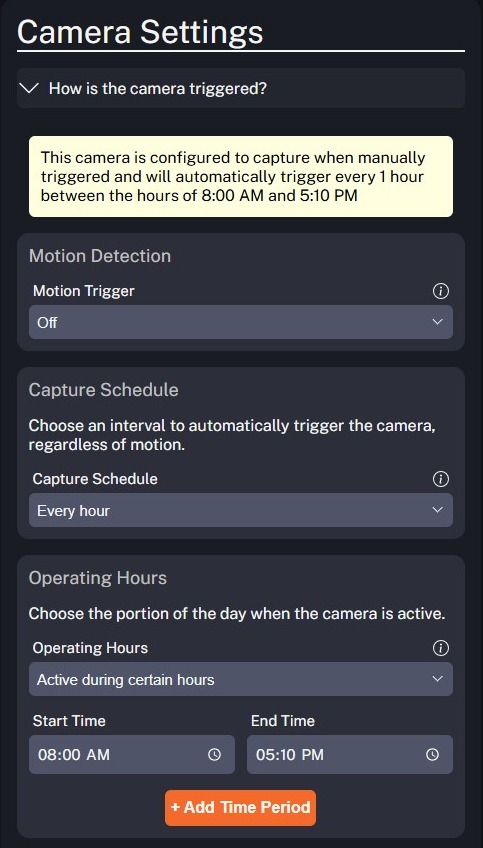
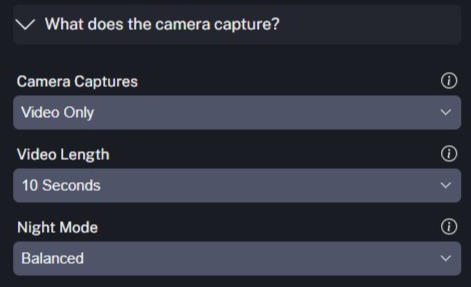
Since this is a busy work site, Arthur has Motion turned off to prevent constant videos from being taken.
He has the Trigger Window set to have the camera take photos from 8AM - 5:10PM while his workers are active on the job site, and he’ll get a new video with the Capture Schedule every hour for active progression updates. These videos can be forwarded to his clients, or saved for a Time Lapse video.
The camera is set to capture Video Only for a 10 second video clip. This maximizes what Arthur can actively see being done, and this will allow for an extended video of how his project went from start to finish.
We recommend the Pro Billing Plans for this type of use, as the extra data means Arthur will have every video he needs to protect his construction site and his future prospects,
Municipal Monitoring
Lydia works for a county municipality, and they utilize Barn Owl cameras to monitor road conditions to deploy snow removal services and monitor road conditions for needed maintenance. This has saved the municipality time and money to ensure their resources are being used in the best possible way to service their area. Below are the settings they use.
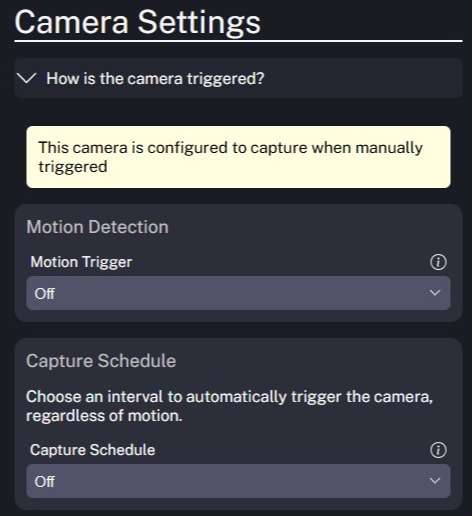
After much consideration about the best use for our cameras, Lydia keeps Motion turned off. This is to ensure there’s no unnecessary highway and road activity being picked up and raising their bill.
Note the settings above for Capture Schedule and Operating Hours. Instead, Lydia chooses to take a Photo using On Demand. This means she selects the small camera icon next to the name of the camera she wishes to trigger. This sends a real time photo or video to her account. This will ensure that she’s only receiving captures when it makes sense to check on road conditions.
We recommend the Standard billing plan for this camera.